Anjali Chauhan
Jun 04,2026
Introduction
So, you want to dive into motion graphics and visual effects? Honestly, that's a really good choice. The Adobe After Effects Guide below is built for complete beginners who feel a little lost every time they open the software and see all those panels. It's okay. Everyone starts somewhere. Adobe After Effects is one of the most powerful creative tools on the planet, and with some patience—plus the right roadmap—it becomes surprisingly approachable. Let's go over the details.What Is Adobe After Effects? An After Effects Guide Overview
Adobe After Effects is a digital motion graphics and compositing application developed by Adobe. Unlike video editors, it focuses on layering effects, animations, and visual elements frame by frame. Think title sequences, animated logos, and cinematic visual effects—the stuff that makes films and ads feel polished. It's part of the Adobe Creative Cloud ecosystem, which means it plays nicely with Premiere Pro, Illustrator, and Photoshop. Designers, filmmakers, and content creators worldwide rely on it daily.How to Use After Effects: Understanding the Interface
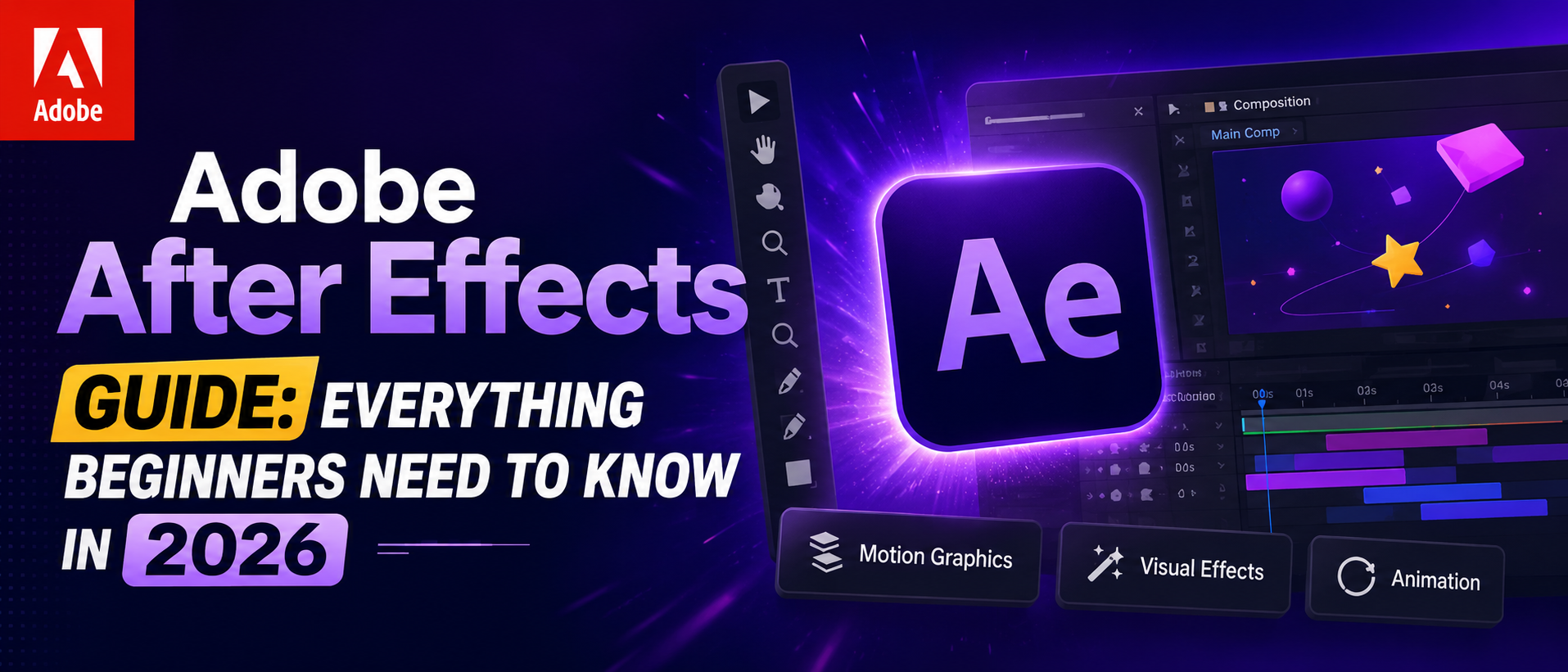
When you first launch After Effects, the interface might feel like someone threw five software programs together. But there's logic to it, and it becomes easier with practice. Knowing how to use After Effects starts with understanding four main panels: the Project panel (where assets live), the Composition panel (your canvas), the Timeline (where animation happens), and the Tools panel. Spend fifteen minutes just clicking around without any pressure to create anything. That "aha" moment comes faster than expected.After Effects Basics: Compositions and Layers
Here are the After Effects basics that absolutely everyone needs to know before anything else:- Compositions: Think of these as your project containers—they hold your layers, set your resolution, frame rate, and duration.
- Layers: Every element (video, image, shape, text) exists as a layer. You stack, order, and animate them in the timeline.
- Keyframes: These are markers you place on the timeline to tell After Effects where a property starts and ends—the software fills in the motion between them.
- Precomposing: Grouping layers into a nested composition so complex projects stay manageable and clean.
Learn After Effects: Keyframe Animation Step by Step
Ready to learn After Effects animation? Here's the truth: keyframing feels confusing for about three sessions, then it suddenly makes complete sense. Select a layer, hit the P key to reveal Position, click the stopwatch icon to set the first keyframe, move the playhead forward, and reposition the layer—done. That's a basic movement animation. From there, experiment with Scale (S), Rotation (R), and Opacity (T). Try easing keyframes using the Graph Editor for smoother, more professional motion.Adobe After Effects Tutorial: Working with Effects and Presets
This is where things get genuinely exciting. The online Adobe After Effects tutorial community is massive—but before searching elsewhere, explore the built-in Effects & Presets panel. Type any keyword (blur, glow, distort), and dozens of options appear instantly. Some standout effects worth exploring early on include Gaussian Blur for smooth depth effects, Drop Shadow for layered realism, and Lumetri Color for cinematic grading. Drag any effect directly onto a layer and tweak the parameters in the Effect Controls panel. Fast, intuitive, and highly effective.After Effects Guide to Text Animation
Text animation is probably the most-used skill in this After Effects guide—and for good reason. Whether it's a YouTube title card or a full broadcast opener, animated text sells professionalism. Use the Type tool to add text, then explore the Animate menu within the text layer. Range Selectors let you animate individual characters or words rather than the whole block. The built-in text animation presets are highly versatile and useful—browse the Animation Presets under Text in the Effects & Presets panel and apply them with a single drag. Start there, then customize.Adobe After Effects for Beginners: Rendering and Exporting
For anyone doing Adobe After Effects for beginners, rendering is the final—and sometimes most confusing—step. The recommended workflow is using Adobe Media Encoder rather than the built-in Render Queue, because it runs in the background while After Effects stays usable. Go to Composition > Add to Adobe Media Encoder Queue, select a preset (H.264 for web, ProRes for editing), set the output location, and hit the green play button in Media Encoder. The file processes, exports, and lands wherever it was told to go. Clean, simple, professional.Top Tips to Learn After Effects Faster
A few habits that genuinely accelerate progress when trying to learn After Effects:- Use keyboard shortcuts from day one — RAM Preview (Spacebar), U to show all keyframes, and Ctrl/Cmd+D to duplicate layers.
- Watch one short tutorial, then immediately recreate it without rewatching — retention improves dramatically.
- Save project files obsessively. Regularly saving your project helps prevent data loss during unexpected interruptions. Ctrl/Cmd+S every ten minutes is a healthy reflex.
- Explore Adobe's own free tutorial library at adobe.com — updated regularly and organized by skill level.
Final Thoughts on This Adobe After Effects Guide
Adobe After Effects rewards curiosity. Every new feature discovered opens up another creative direction that didn't seem possible before. This Adobe After Effects Guide is just the starting point—the real education happens inside the software itself. Master the basics: compositions, layers, keyframes, and effects. Then push further. Adobe's platform genuinely caters to creators at every level, and today's available tools make professional-quality motion graphics more accessible than ever. Open After Effects, start small, and trust the process. The results will speak for themselves.Start Your After Effects Journey Today
Read More Blogs:
Adobe Creative Cloud Pricing Plans (2026): Full Breakdown
Top Web IT Agencies Leading The AI Era
Build A Website With Emergent AI: The Complete Beginner’s Guide
FAQs
Q1. Is Adobe After Effects good for complete beginners?Ans: Yes, Adobe After Effects is beginner-friendly with a structured approach, built-in presets, and Adobe's rich tutorial library to guide every new user.
Q2. What is the best way to learn After Effects fast?
Ans: The fastest way to learn After Effects is by practising keyframe animation daily, using keyboard shortcuts, and following Adobe's official step-by-step tutorials.
Q3. Can Adobe After Effects be used for text animation?
Ans: Absolutely — Adobe After Effects offers powerful built-in text animation presets and Range Selectors, making it one of the best tools for professional motion graphics.
Recent Blogs