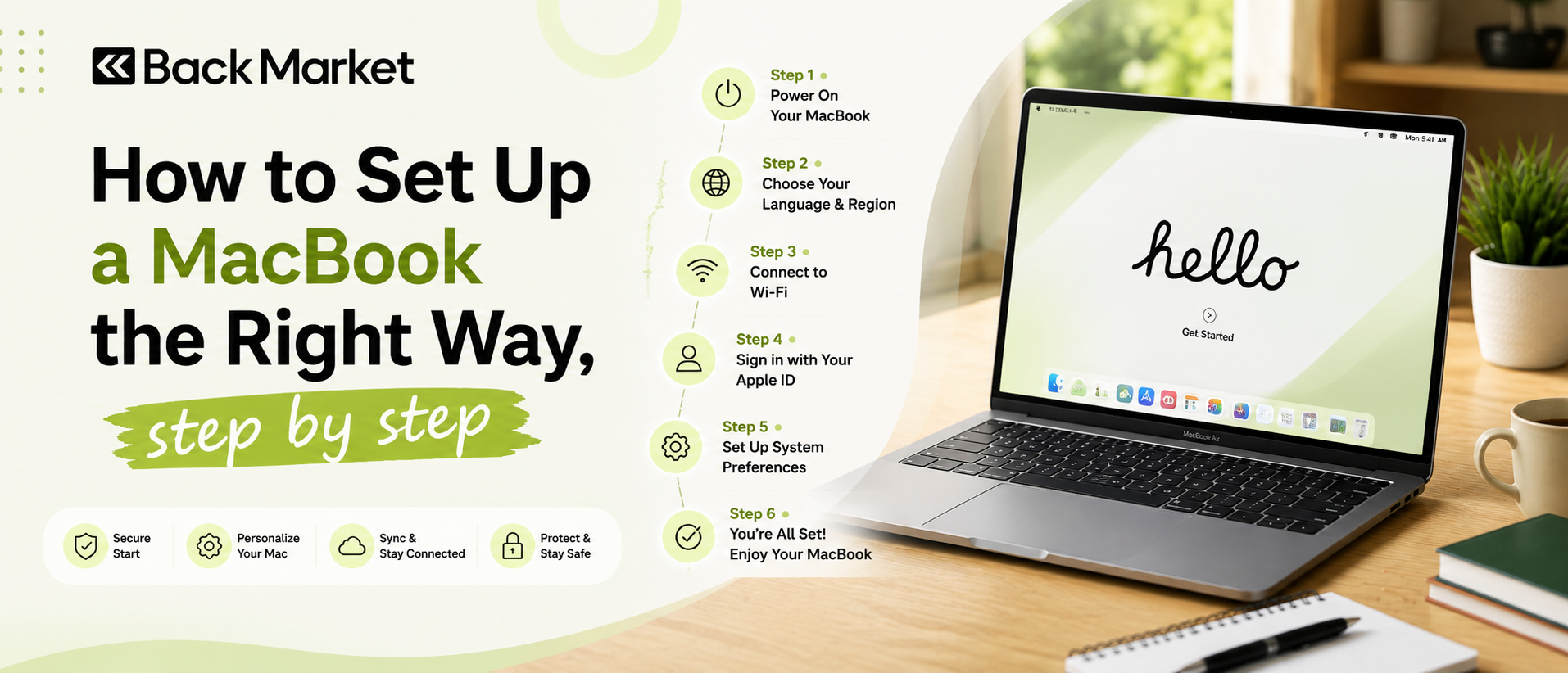
How to Set Up a MacBook the Right Way, step by step
Deepansha
Oct 23,2026
Introduction
Shop Refurbished MacBooks Today! 💻So you finally unboxed it. The aluminum feels cool under your fingers, the lid opens with that soft little resistance, and the screen lights up before you've even decided what to do next. Exciting, right? But here's the thing. How to set up a MacBook isn't just about clicking Next until the desktop appears. The choices you make in the first hour decide how safe, fast, and comfortable the machine feels for years. I've watched friends skip half of it and regret it later (usually after a coffee spill or a lost bag).
This guide walks you through every step, in an order that actually makes sense. And if you're still shopping for one, Back Market is a smart place to find a refurbished MacBook at a friendlier price.
How to Set Up a MacBook: Start Before You Power On
Grab your charger, a steady Wi-Fi connection, and your Wi-Fi password (the sticky note on the router is fine, we've all been there). If you're moving from another Mac or a Windows PC, keep the old computer nearby and plugged in. If you have an Apple Account already, remember the password. If you don't, you'll make one in a minute.Also think about backups. Honestly, this is the part people ignore. If your old laptop has files you care about, back them up now, before anything else. A cheap external SSD does the job nicely. You'll thank yourself later, I promise.
Plug in the charger, even if the battery shows some juice. A setup that dies at 4 percent in the middle of a transfer is a special kind of annoying.
Walking Through Setup Assistant
Open the lid. The Mac wakes up on its own and greets you with a big, friendly "Hello" in a dozen languages. Pretty, isn't it?The Setup Assistant then asks a series of questions. Pick your language and country, then connect to Wi-Fi. Next come accessibility options. Skip them unless you need them, since you can always change them later in System Settings.
Then you'll hit the data transfer screen, which is where Migration Assistant lives. We'll come back to that, so for now just know it's there. After that, Setup Assistant asks you to sign in with your Apple Account, agree to the terms, and create your computer account. That last part matters more than it looks. Choose a strong password, one you can actually remember but nobody could guess. And write down the account name, because the Mac uses it for your home folder and it's annoying to change later.
You'll also see prompts for Touch ID, Siri, Screen Time, and appearance. Say yes to Touch ID. Siri and Screen Time? Totally your call. Light or dark mode? Maybe dark. Or auto. Pick one, it's reversible.
How to Setup Apple ID on MacBook
Let's talk about the part everyone asks about. Quick note first: Apple now calls it an Apple Account instead of an Apple ID, but the idea is the same, and most people still search for how to set up Apple ID on a MacBook, so I'll use both terms.If you have one already, simply type your email and password during Setup Assistant. Apple will probably send a six digit verification code to another device you own. Enter it and you're in.
If you don't have one, choose the option to create a new account. You'll need:
- A name and birthday
- An email address you actually check
- A strong, unique password
- A phone number for two-factor authentication
Already finished setup and skipped the sign in? No panic. Open System Settings, click Sign in with your Apple Account at the top of the sidebar, and follow the prompts.
Once you're signed in, check the iCloud settings. You get 5 GB of free storage, which fills up faster than you'd think (photos eat it alive). Decide what you want syncing: Photos, iCloud Drive, Passwords, Contacts, Calendars. And please turn on Find My Mac here. If the laptop ever goes missing, that single toggle can locate it, lock it, or wipe it remotely.
Bringing Your Old Stuff Over with Migration Assistant
Migration Assistant is Apple's built-in tool for moving your files, apps, and settings. It's honestly one of the best parts of the Mac experience.You can transfer from:
- Another Mac
- A Time Machine backup
- A Windows PC (you'll need to install Windows Migration Assistant on the PC first)
A small warning. Migrating everything also migrates the digital junk, like old caches and apps you haven't opened since 2019. Some people prefer a clean start and copy only their documents by hand. Which is better? Depends on you. If your old Mac was a mess, start fresh. If it was tidy, migrate happily.
Install Updates Before Anything Else
Your MacBook may have shipped with an older version of macOS sitting on it, because it spent weeks in a warehouse. So before you install anything, open System Settings > General > Software Update and let it finish. Restart if it asks.Boring? Yes. Important? Very. Updates fix security holes, and you want those closed before you start downloading things.
MacBook Security Settings That Actually Matter
Now for the serious bit. MacBook security settings aren't complicated, but a handful of them deserve your attention right away. All of them live in System Settings, mostly under Privacy & Security.Turn on FileVault: FileVault encrypts your whole startup disk, so if someone steals the laptop, they can't just pull your files off it. Go to Privacy & Security > FileVault and switch it on. You can unlock it with your Apple Account or a recovery key. If you choose a recovery key, store it somewhere safe, and not on the Mac itself. Obvious, but people do it anyway.
Switch on the firewall: Head to Network > Firewall. It's often off by default, and turning it on blocks unwanted incoming connections. It takes ten seconds.
Set up Touch ID properly: Under Touch ID & Password, add a couple of fingers. I use two from each hand, because the day your right index finger is wet or cold is the day you'll need it.
Tighten the lock screen: In Lock Screen, set the Mac to require a password soon after the screen saver or display turns off. A sleeping laptop in a coffee shop shouldn't be an open door.
Check Gatekeeper: In Privacy & Security, make sure apps are allowed only from the App Store or from identified developers. That setting stops a lot of sketchy installers.
Review app permissions: Under the same menu, look at which apps can use your camera, microphone, location, and screen recording. If something seems odd, deny it. You can always allow it again.
That's the core list. Do these six things and you're ahead of most Mac owners.
Set Up Time Machine Before You Need It
Here's a truth I learned the hard way: nobody sets up backups after the disaster. They set them up before. So do it now.Time Machine is built into macOS and works quietly in the background. You need an external drive, ideally at least twice the size of your Mac's storage. Plug it in, open System Settings > General > Time Machine, click Add Backup Disk, and select the drive. The Mac may offer to format it, which erases everything on it, so make sure it's empty or disposable.
The first backup takes a while. After that it only saves what's changed, hour by hour, so the process feels almost invisible. And if you ever replace this Mac, Time Machine pairs neatly with Migration Assistant, so your whole life moves over in one go.
Prefer the cloud? iCloud covers some things, but it isn't a full backup. Treat it as a bonus, not a replacement.
Essential MacBook Apps for Day One
The Mac comes with great built-in apps. Safari, Mail, Photos, Notes, Pages, Numbers, and Keynote cover plenty. Still, a few extras make the machine feel complete. Here are the essential MacBook apps I'd install first.- A password manager: 1Password and Bitwarden are both solid. Stop reusing passwords. Seriously.
- A second browser: Chrome or Firefox, depending on your habits. Some websites just behave better in one than another.
- Rectangle: A free window manager that snaps windows to halves and corners using keyboard shortcuts. Small things,and huge differences.
- Raycast or Alfred: Fancy launchers that find files, open apps, and run quick actions. Spotlight is fine, but these go further.
- The Unarchiver: Handles zip, rar, and other archive types without fuss.
- VLC: Play nearly any video file you throw at it.
- AppCleaner: Removes apps along with their leftover files, which dragging to the Trash doesn't always do.
- Slack, Zoom, or Notion: Only if your work or school uses them.
MacBook Desktop Customization: Make It Feel Like Yours
Now the fun part. A fresh MacBook is a blank room, and MacBook desktop customization is how you decorate it.Start with the wallpaper. Apple's dynamic wallpapers shift with the time of day, which is lovely, but a favorite photo works too. Then open Desktop & Dock and adjust the Dock. Shrink it a bit, turn on auto-hide if you like a cleaner screen, and drag off icons you never use. Mine only holds about eight apps. Minimal. Calm.
Next, tweak the trackpad. In Trackpad, turn on Tap to click. It feels more natural than pressing down, though that's personal. Also check the scroll direction. Apple's default "natural" scrolling confuses people coming from Windows, so flip it if it bothers you.
Then head to Finder. Open Finder, go to Settings > Advanced, and enable showing all filename extensions. In the View menu, turn on the path bar and status bar too. Tiny changes, but they make finding files so much easier.
A few more ideas:
- Add widgets to your desktop for weather, calendar, or reminders
- Set up hot corners to trigger Mission Control or lock the screen
- Turn on Night Shift or True Tone for softer evening light
- Rearrange the menu bar and Control Center to keep only what you use
Final Thoughts
That's the whole journey. You prepared, moved through Setup Assistant, signed in with your Apple Account, brought your old files over with Migration Assistant, updated macOS, locked things down with FileVault and a few other security settings, started Time Machine, added a handful of essential apps, and made the desktop your own. Not bad for one afternoon.Knowing how to set up a MacBook properly really does pay off. Your data stays safer, your laptop runs smoother, and you avoid those painful "I wish I'd done that earlier" moments. Take your time with it. And if you skipped a step today, no big deal, you can come back to this list whenever you like.
Enjoy the new machine. It's a good one. And when it's time to upgrade or add another MacBook, take a look at Back Market for quality refurbished options that save you money and reduce e-waste.
Shop Refurbished MacBooks Today! 💻
Frequently Asked Questions
1. Can I set up a MacBook without an Apple ID?
Yes, you can. During Setup Assistant you can choose to set up later and just create a local computer account. But you'll miss out on the App Store, iCloud, Find My Mac, and iMessage until you sign in. Most people find it worth adding an Apple Account sooner rather than later.
2. How long does it take to set up a new MacBook?
Basic setup usually takes around 20 to 30 minutes. If you use Migration Assistant to transfer a lot of data, add anywhere from an hour to several hours. Updates and Time Machine's first backup can also take a while, so set aside an afternoon if you can.
3. Do I really need FileVault turned on?
It's strongly recommended. FileVault encrypts everything on your startup disk, so a lost or stolen MacBook doesn't hand over your personal files. Modern Macs handle the encryption with very little impact on everyday speed, so there's hardly any downside. Just keep your recovery key somewhere safe.
Recent Blogs